
Beyond the Hype: Meet Your New Digital Expert – Gemini Gems
In my last post, we looked at how simple prompts in Gmail can reclaim hours of your day. But what if you didn’t have to write those prompts at all?
If you’ve spent any time in Gemini lately, you might have noticed a little “jewel” icon or a section called Gems. If you’re like most busy leaders I train, you probably thought, “I don’t have time for another feature.” But here’s the reality: Gems are the antidote to AI fatigue.
What exactly is a “Gem”?
Think of a Gem as a customised version of Gemini that you’ve “pre-trained” to be an expert in one specific area of your work.
Instead of starting a blank chat and explaining your brand voice, your company goals, or your formatting preferences every single time, you create a Gem once. It remembers the context, the rules, and the “vibe” so you don’t have to. It’s like hiring a specialist assistant who never forgets your feedback.
More Than Just a Chat: Knowledge & Tools
The real “magic” happens when you stop treating Gemini like a search engine and start treating it like a workstation. Two features make Gems powerhouse tools for leaders:
 Knowledge Uploads: You can “feed” your Gem specific files (PDFs, DocX, CSVs) or link it directly to a Google Drive folder. When you ask it a question, it doesn’t just guess; it references your data.
Tool Integration: You can enable Extensions within a Gem. This means your Gem can live-check your Google Calendar, pull data from Google Hotels, or even browse the web to find the latest industry news without you needing to open a new tab.
Three Ways Gems Win Back Your Sanity
How to Get Started (In 60 Seconds)
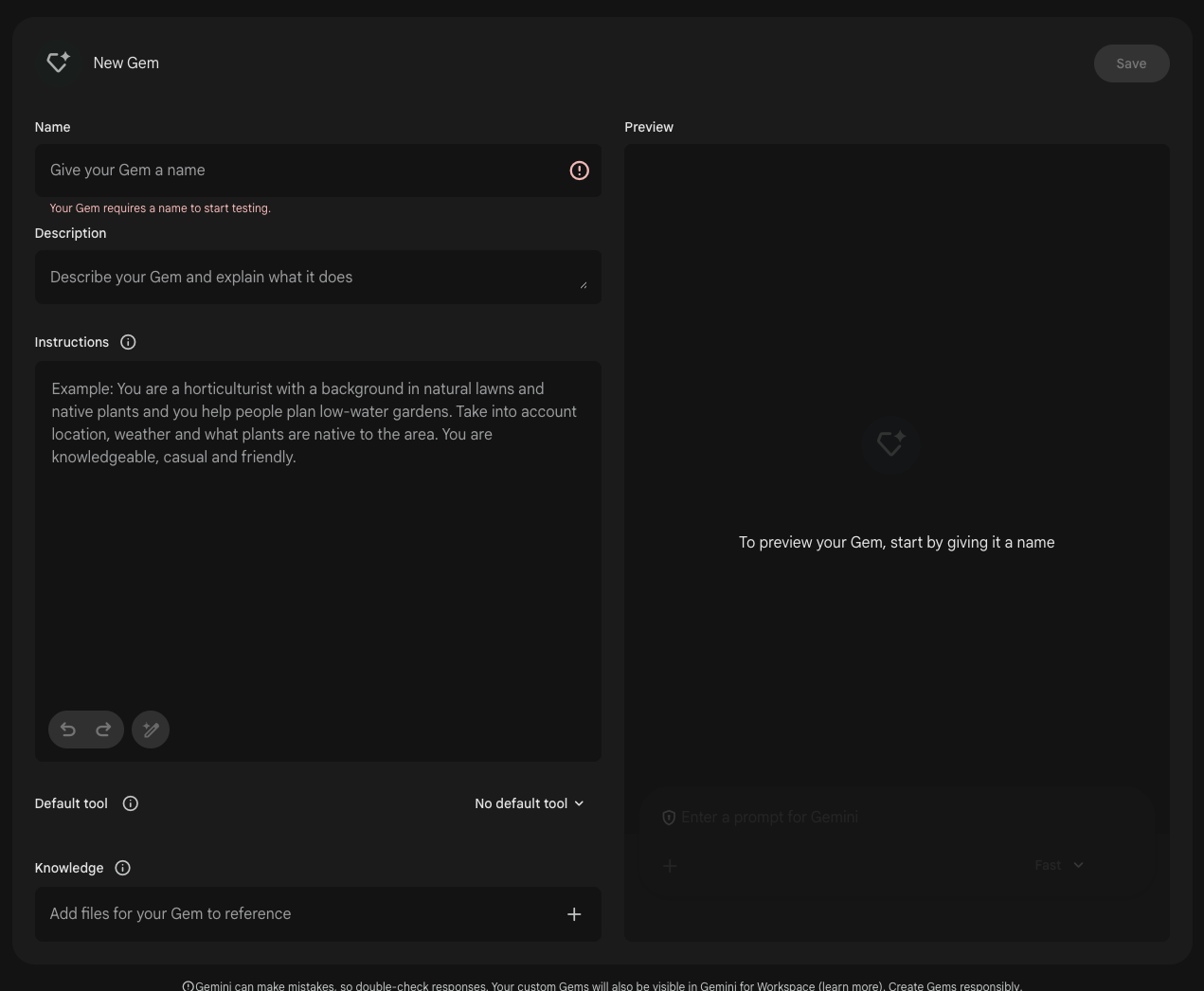
- Find the Gem Manager: In the Gemini side panel, click Gem Manager (the jewel icon).
- Use the “Magic Wand”: Click New Gem. Type a simple goal like: “Be my LinkedIn coach.”
- Refine with Gemini: Click the pencil icon (Rewrite Instructions). Gemini will expand your sentence into professional, multi-layered instructions.
- Add Your Knowledge: Look for the “Knowledge” or “Add Files” button to upload your brand guides, spreadsheets, or project briefs.
- Save & Use: It’s now pinned to your sidebar, ready to work whenever you are.
Pro Tip: If you’re using a Workspace Business or Enterprise account, you can share Gems with your team. Built the perfect “Proposal Reviewer”? Share the link, and your whole department can use it!
Click on the white dots below to find out more about the Gems panel.
Title
Text goes here.
Morgan d’Arcy | Training Lead
